General User Manual
This document will provide instructions on how use the functions and facilities that are available to any registered on non-registered user of the system.
The portal uses a role-based access control system to define what functions are available to each user. Depending on the roles assigned to you, you may be able to view some or all of the following specific manuals:
- For information about raising complaints, please refer to the Complainant's Manual.
- For information about managing your contractor as a contractor supervisor, please refer to the Supervisor's Manual.
- For more information about facilities available to you as a contractor's worker, please refer to Worker's Manual.
- For information on functionalities available to Engineering Cell Officials, please refer to Engineering Cell Official's Manual.
- If you are an administrator, please refer to the Admin's Manual.
NOTE: Due to rate limits, emails might take a long time to reach your inbox.
How to Register?
NOTE: Registering through these steps requires a valid email in the university's domain (tezu.ac.in or tezu.ernet.in). Moreover this registration process is only for complainants. If you wish to register on the portal as a contractor's supervisor or worker, contact the administrator.
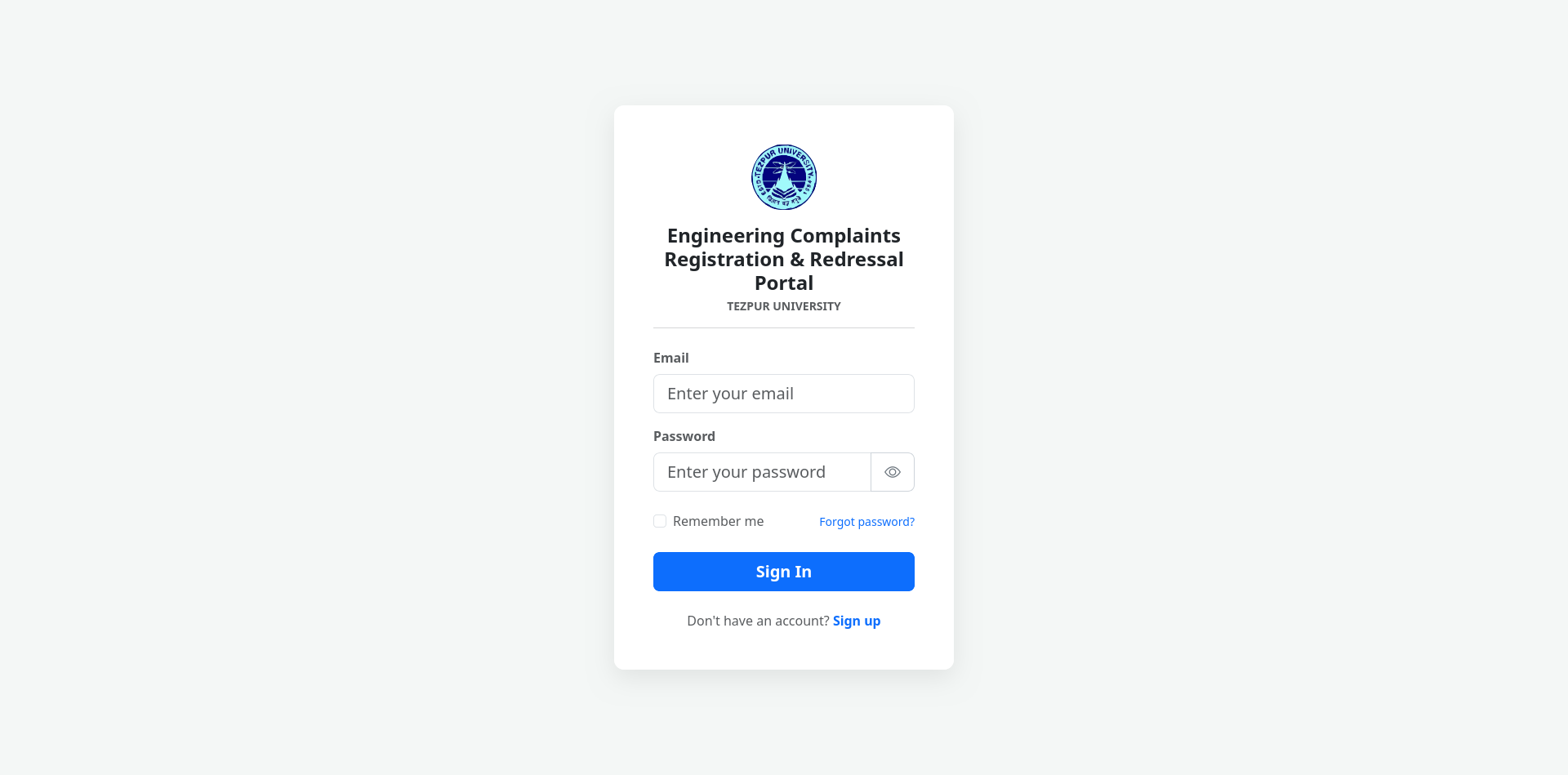
- Navigate to the portal in an internet browser.
- Click on the blue 'Sign Up' text at the bottom of the Login window.
- Fill up the details on the Registration page.
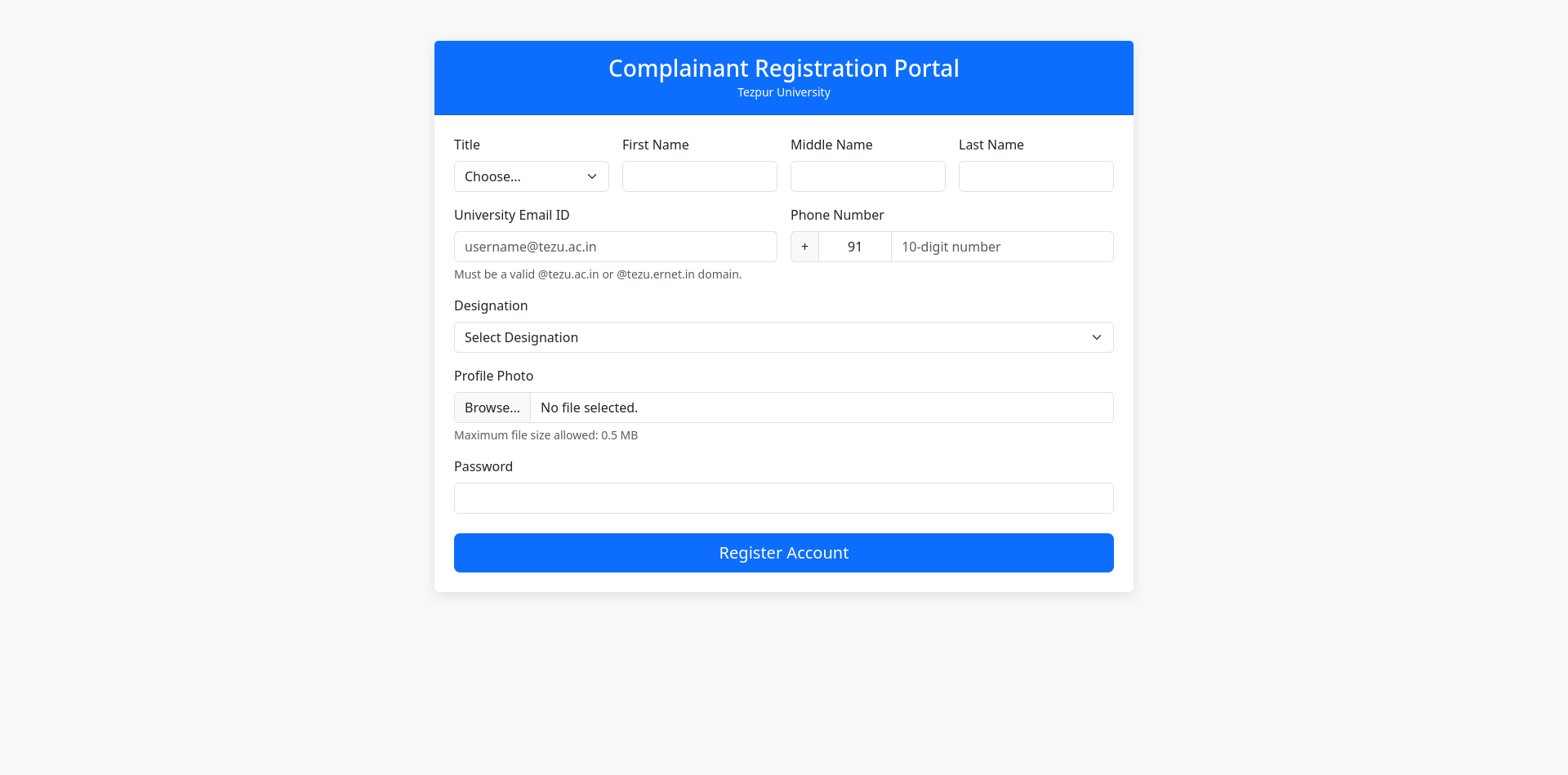
- Click on the blue 'Register Account' button.
- On succesful registration you will be taken back to the Login page.
- You will receive a verification email with a One Time Password (OTP) on your registered email id. Please enter that OTP on the next screen and click on 'Verify Email'. After doing this you can login using your credentials.
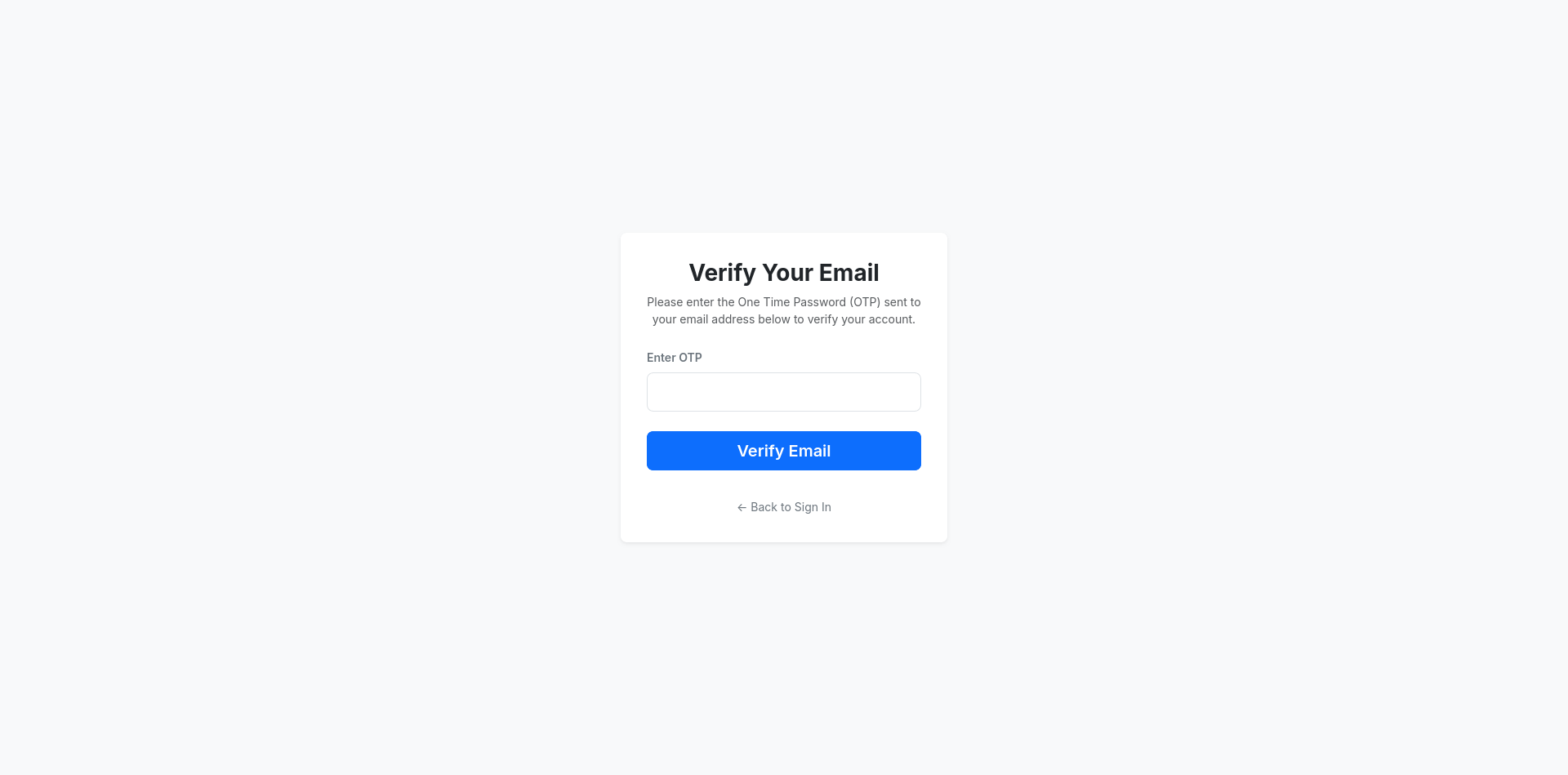
The email with the verification OTP might take some time to reach your inbox. To have the email resent, you must register again with the same details.
How to Reset Forgotten Password?
- Navigate to the portal in an internet browser.
- Beneath the 'Password' field, there is a blue 'Forgot password?' text button. Click on it.
- In the next page, enter the email address with which your account was registered and click on 'Send Reset Link'.
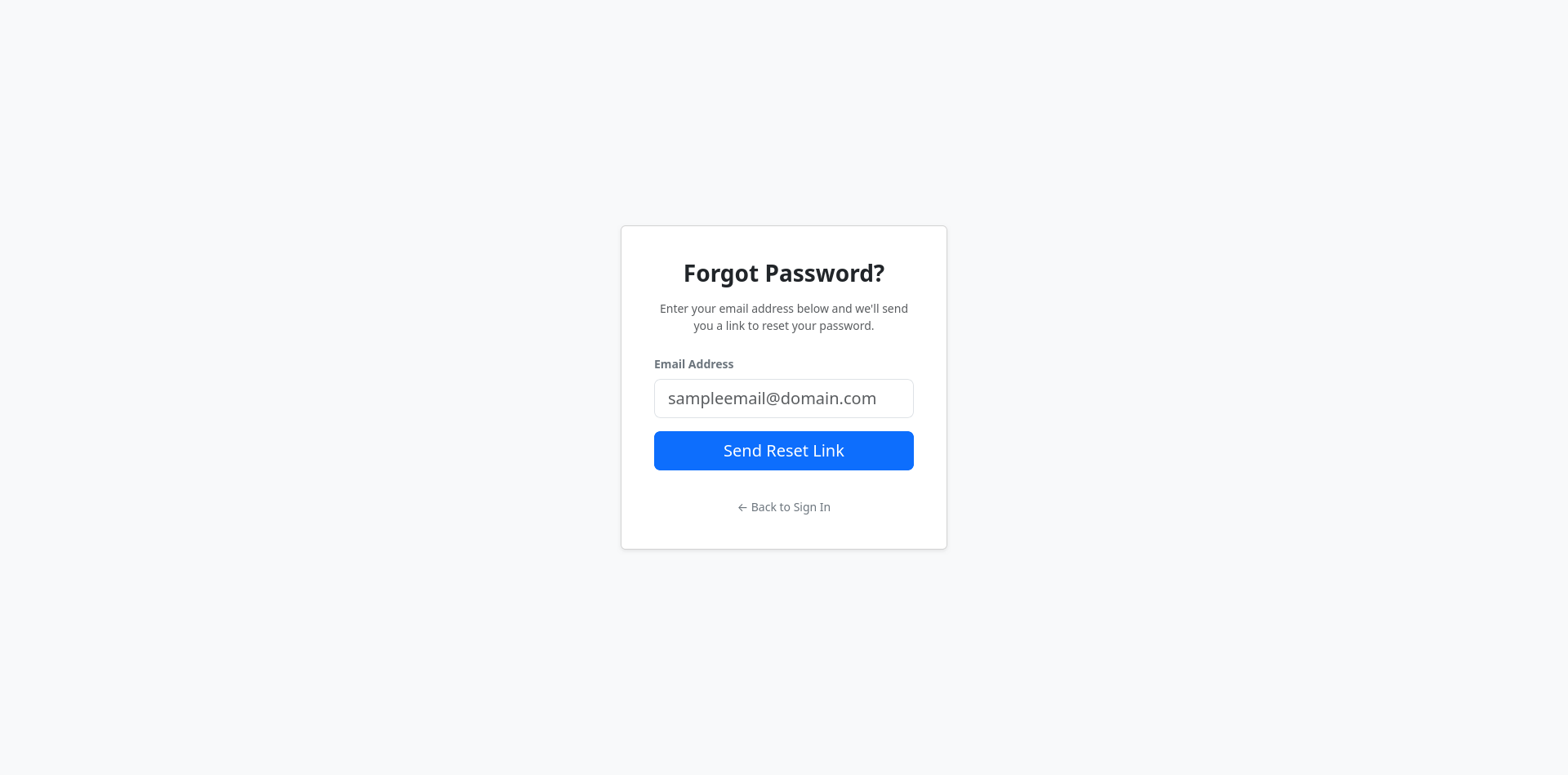
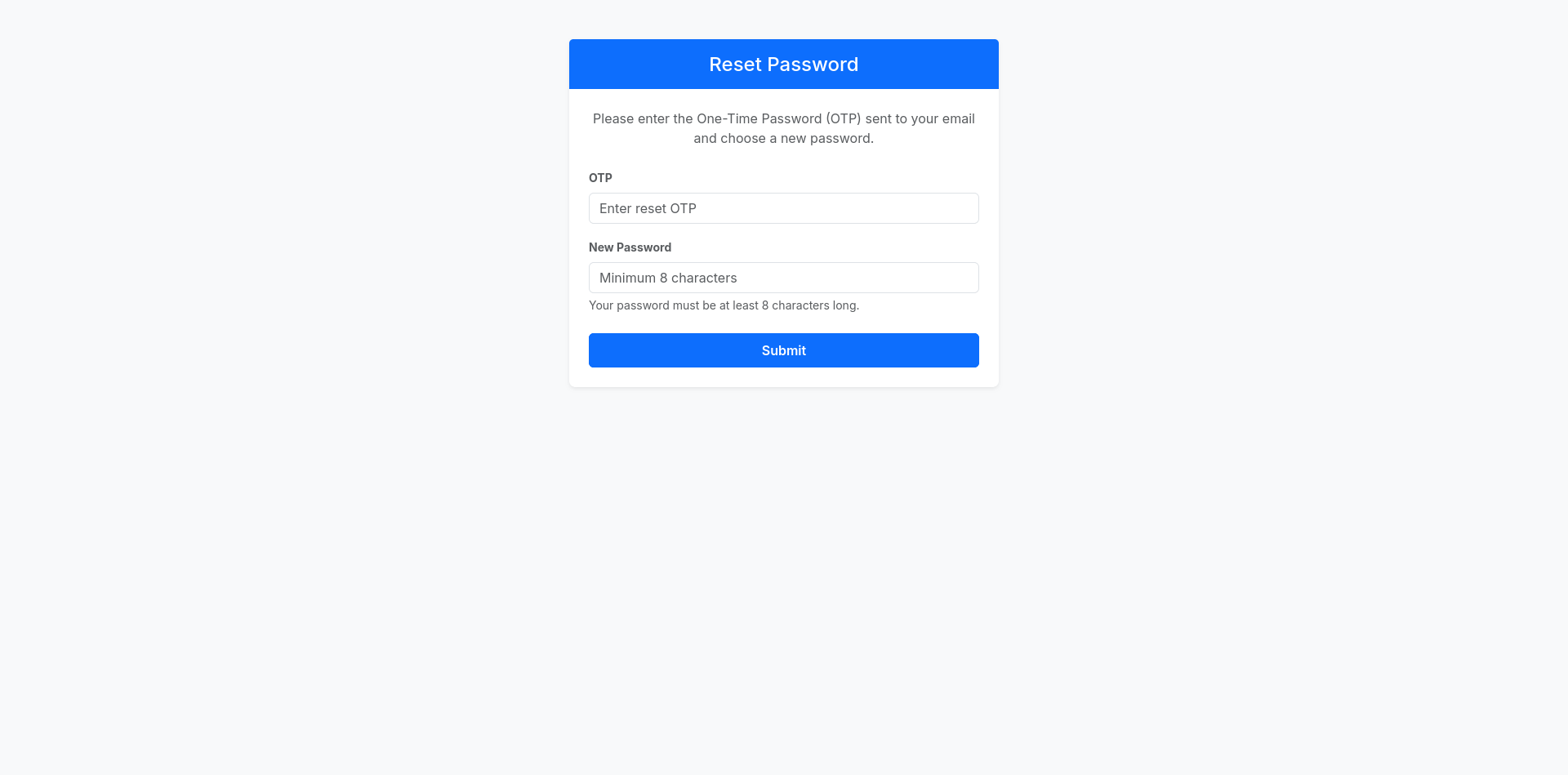
- You will shortly receive an email with a OTP. Enter the OTP on the next page. Enter a new password of atleast 8 characters, and click on 'Submit'. Your new password will now be saved. Please login using the new password now.
How to View my Personal Details?
- Navigate to the portal in a web browser.
- Login using your email and password.
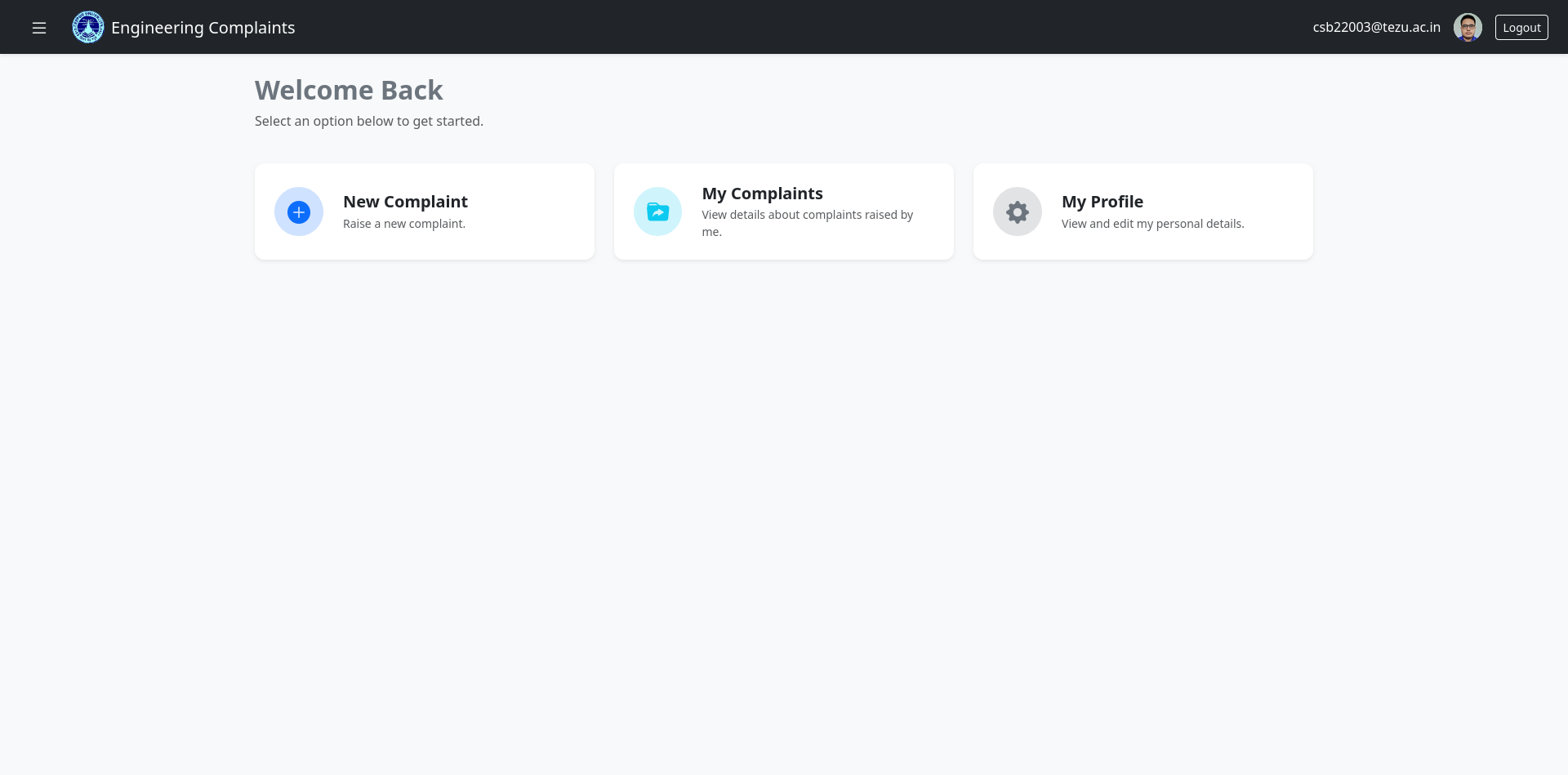
- In the dashboard, click on the card titled 'My Profile' containing a grey gear icon.
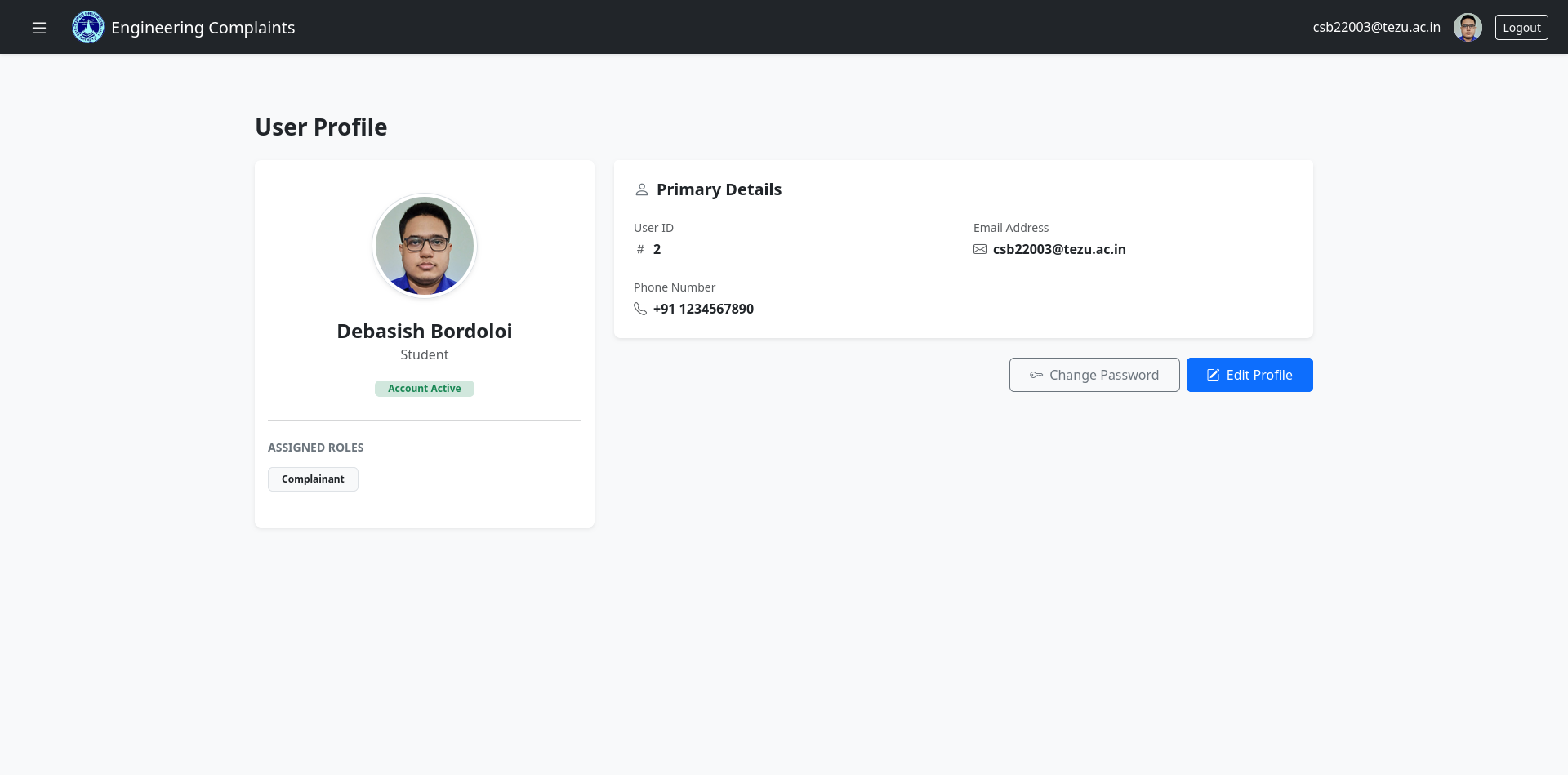
- This will take you to your profile page where you can see and edit your details.
How to Change my Password?
- Follow the instructions in How to View my Personal Details? and go to your profile page.
- Click on 'Change Password'.
- Enter your current and new passwords as requested. Passwords must have atleast 8 characters.
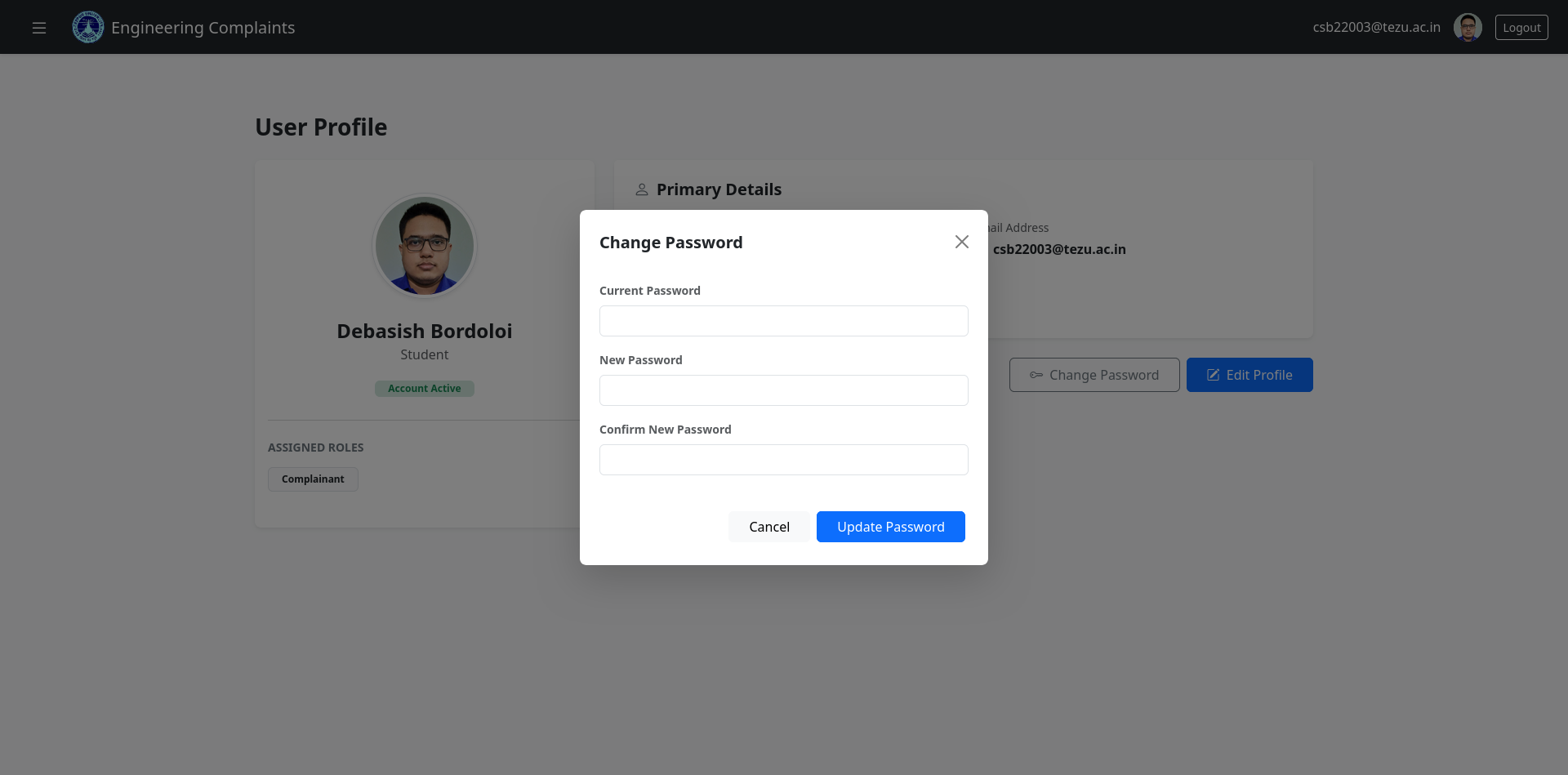
- Click on 'Update Password', and your password will be changed.
How to Change my Email?
- Follow the instructions in How to View my Personal Details? and go to your profile page.
- Click on the blue button titled 'Edit Profile'.
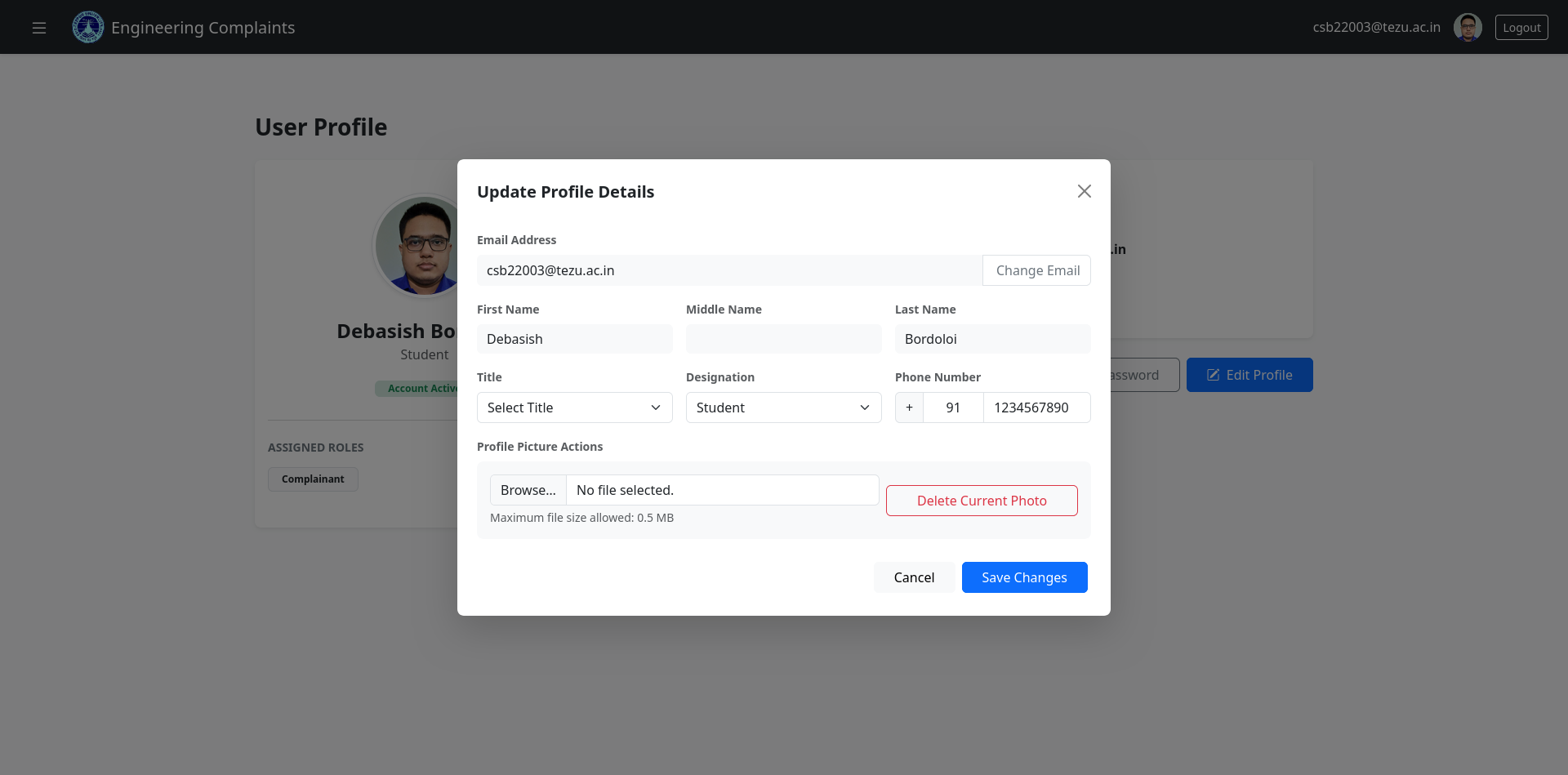
- Click on the 'Change Email' button right next to the Email Address field.
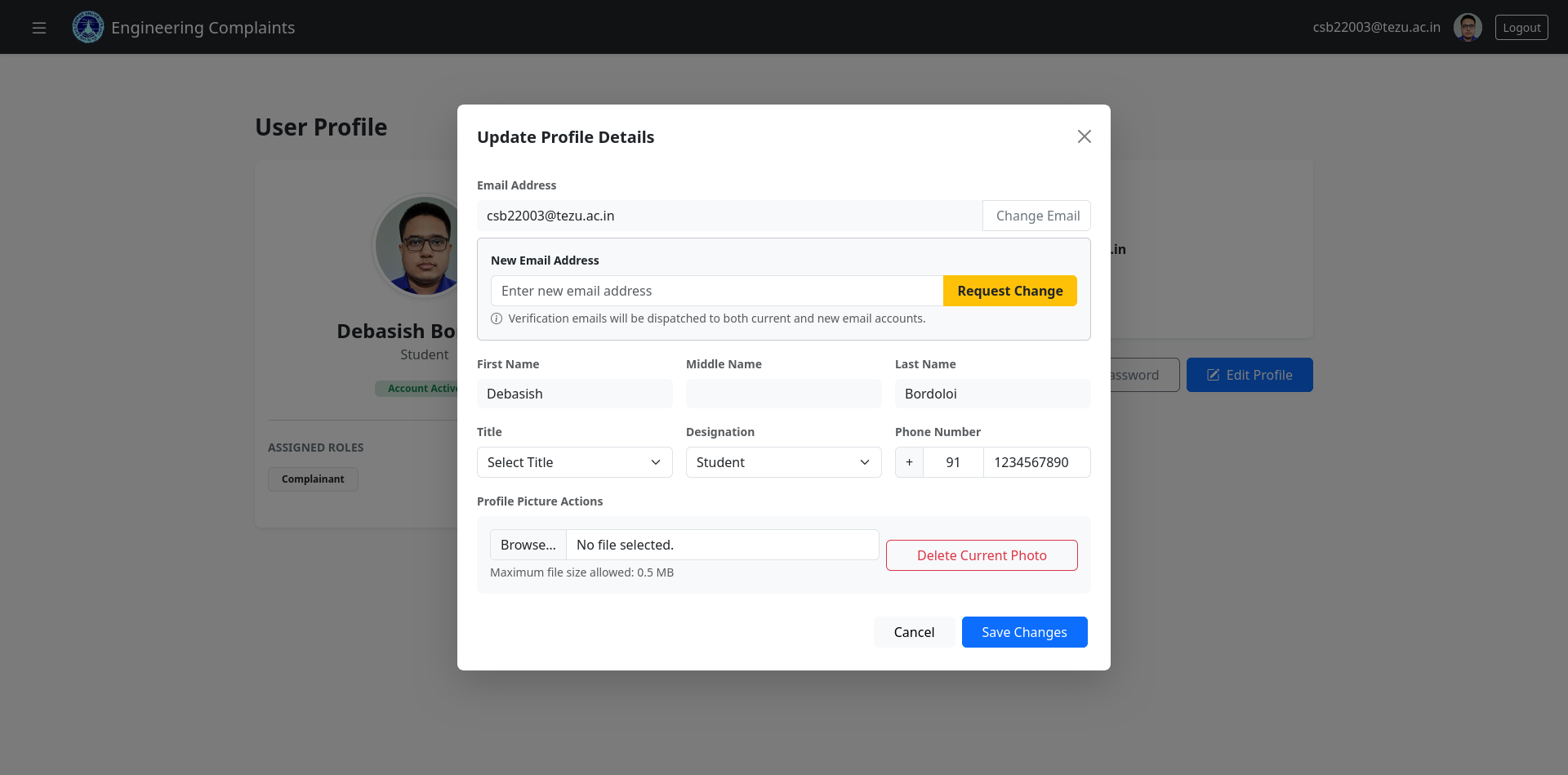
- Enter your new email id and click on 'Request Change'.
- Verification emails with subject Email Change Request, containing a unique OTP each, will be sent to both:
- your old email id (currently associated with your account)
- new email id, to which you want to change.
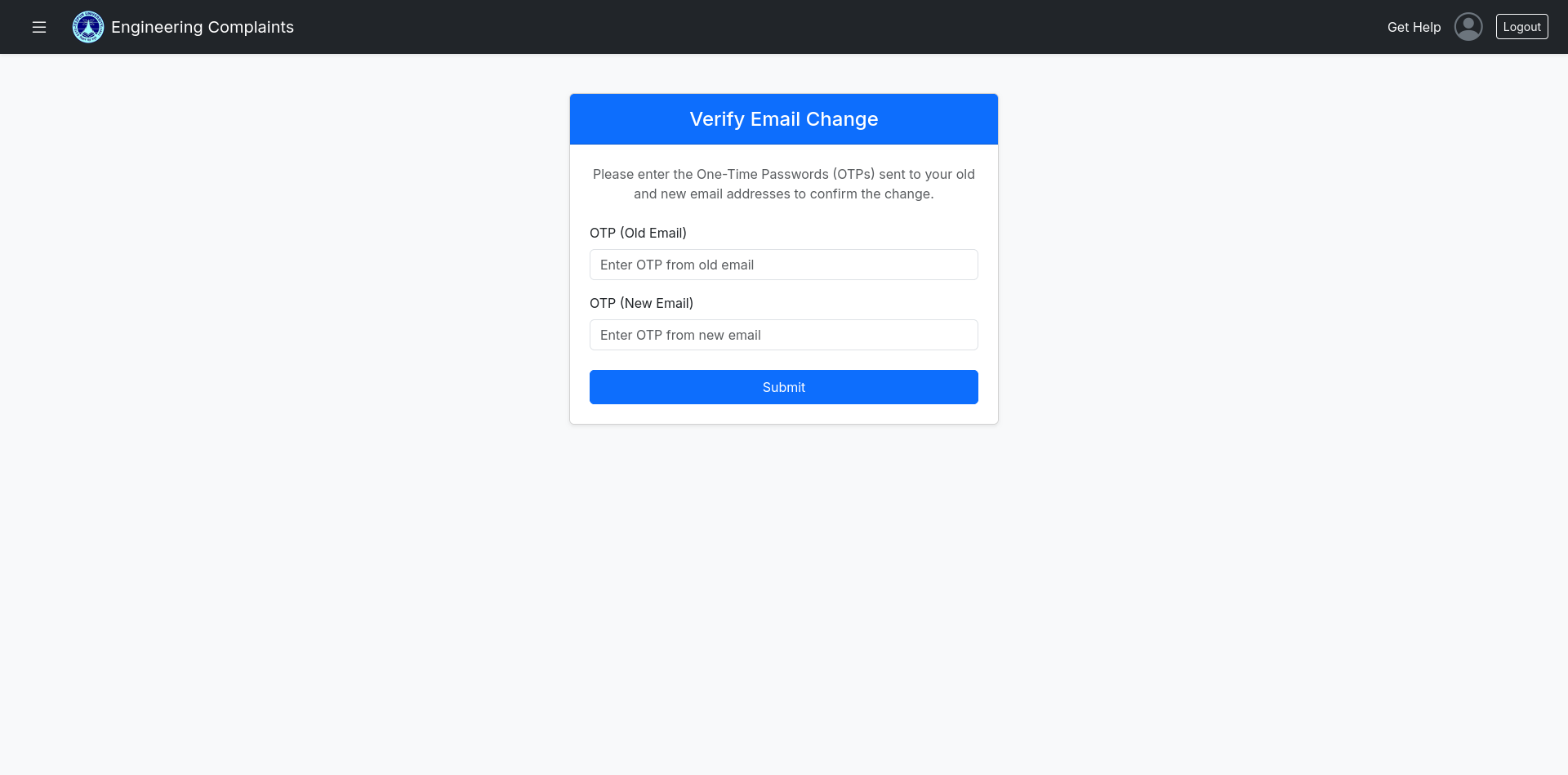
- Enter both the OTPs in the next page, and click on 'Submit'. Your email will be changed. Next time onwards, please login with your new email.
How to Change my Personal Details?
- Follow the instructions in How to View my Personal Details? and go to your profile page.
- Click on the blue button titled 'Edit Profile'.
- Here you can change your title, designation, phone number and profile photo.
NOTE: To change first name, middle name or last name, you must contact the administrator.
- Click on 'Save Changes'.